UNIMUX
USB KVM Switch
2~8대의 모니터와 키보드, 마우스로 8~32대의 컴퓨터 제어
RS-232 리모트 컨트롤
MAC, SUN, PC 호환
USB포트 연결 USB Matrix KVM Switch
Up to eight users can control 32 USB-enabled PC, SUN and MAC computers
Also known as: USB KVM Matrix Switch, USB Matrix KVM Switch, matrix kvm switches, multiple platform cpu switch.

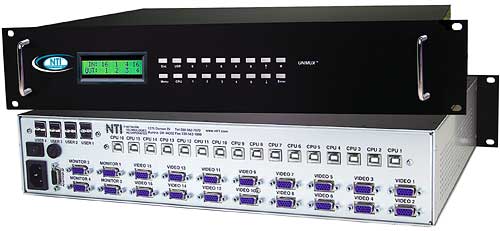
UNIMUX-4X16-U (Front & Back) |
Features & Applications |
The UNIMUX™ USB Matrix KVM switch allows up to eight users to individually command or simultaneously share up to 32 USB computers. Access USB-enabled PC, SUN, and MAC computers using USB keyboards and mice, and VGA multiscan monitors.
USB host computers and USB devices can be hot-plugged or removed at any time. Allows any USB device (keyboard and/or mouse) to control any attached USB host computer. International keyboard layouts are supported in auto-detection mode, or can be manually selected via the On Screen Display (OSD) menu. |
- Equipped with OSD, Liquid Crystal Display, and RS232.
- Rackmount is standard on all UNIMUX-nXm-U models. The smaller models are also available in a desktop case.
- Dedicated microprocessors prevent computers from locking up, ensuring reliable control.
- Fully compliant with USB standards (1.0, 1.1).
- The advanced OSD user interface with password security makes the UNIMUX USB Matrix KVM Switch simple and reliable to use in Enterprise data centers.
- Computers can be shared or used exclusively.
- Crestron® compatible.
|
Specifications |
Hosts
- Female 15-pin HD and female USB Type B connectors.
- Supports PCs with USB-enabled OS (Windows 98/ME/2000/XP) and USB ports.
- Supports PCs with USB-enabled BIOS (legacy USB support) and USB ports.
- Supports SUN Blade 100, SUN Blade 1000, SUN Fire™ 240 and SUN Ray.
- Supports MAC G4, G5 and Xserve.
- Supports MAC soft (keyboard) power-on.
- Any legacy PS/2 or SUN computer can be connected by using a USB-PS2-R or USB-SUN-R adapter.
Monitor
- Crisp and clear 1900x1200 resolution.
- Female 15-pin HD connectors.
- A multiscan VGA monitor is required to display the different video outputs from different platforms.
- Bandwidth is 150 MHz.
Cables
- Interface cables between your computers and the switch are required for proper operation. Use USBVEXT-xx-MM and standard interface cables to connect switches to computers.
- Cables not included.
|
Devices
- Female USB Type A connectors.
- Compatible with most USB keyboards and mice, including Microsoft USB Intellimouse®, Logitech Cordless Elite Duo keyboard and mouse, Gyration keyboard/mouse and Crystal Vision keyboard with touchpad.
- Keyboard and mouse are hot-pluggable.
- USB MAC and SUN startup keys are supported on all platforms of input devices.
- Keystrokes are translated across platforms.
Power
- 110 or 220 VAC at 50 or 60 Hz.
- The UNIMUX-2X8-U and the UNIMUX-4X8-U (desktop and rackmount) use AC adapters as their power source.
- Power consumption: 2X8: 10W, 2X16: 15W, 2X32: 30W, 4X8: 15W, 4X16: 25W, 4X32: 40W, 8X8: 25W, 8X16: 25W, 8X24: 35W, 8X32: 35W
Regulatory Approvals
- CE
- Available on all models except UNIMUX-2X8-UDT and UNIMUX-4X8-UDT
|
Control Methods |
Keyboard
- Type + <`> to go into Command Mode.
- Press to leave Command Mode and return to Normal Mode.
- Use the keyboard to command the switchbox to select ports or configure the Scan, Sharing and Broadcast Modes.
- Normal Operating Mode allows the user to directly operate the selected computer with a transparent presence of the NTI switch.
- Sharing Mode allows users to share the same computer.
- Command Mode allows the user to give instructions to the switch through their keyboard. Keystrokes are not passed to the computer.
- Scan Mode feature causes the switch to automatically and sequentially display the video from each selected powered on computer for a duration of 2-255 seconds (programmable by the user).
- Broadcast Mode allows the user's keystrokes to be sent to all selected powered on computers.
|
Front Panel Interface
- Locally change ports with front panel buttons.
- Use front panel buttons to move through LCD screens and execute actions.
- LCD indicates currently selected port for each user.
- Use buttons to configure RS232 control.
- Change baud rates for RS232.
| 
|








 man028.pdf








